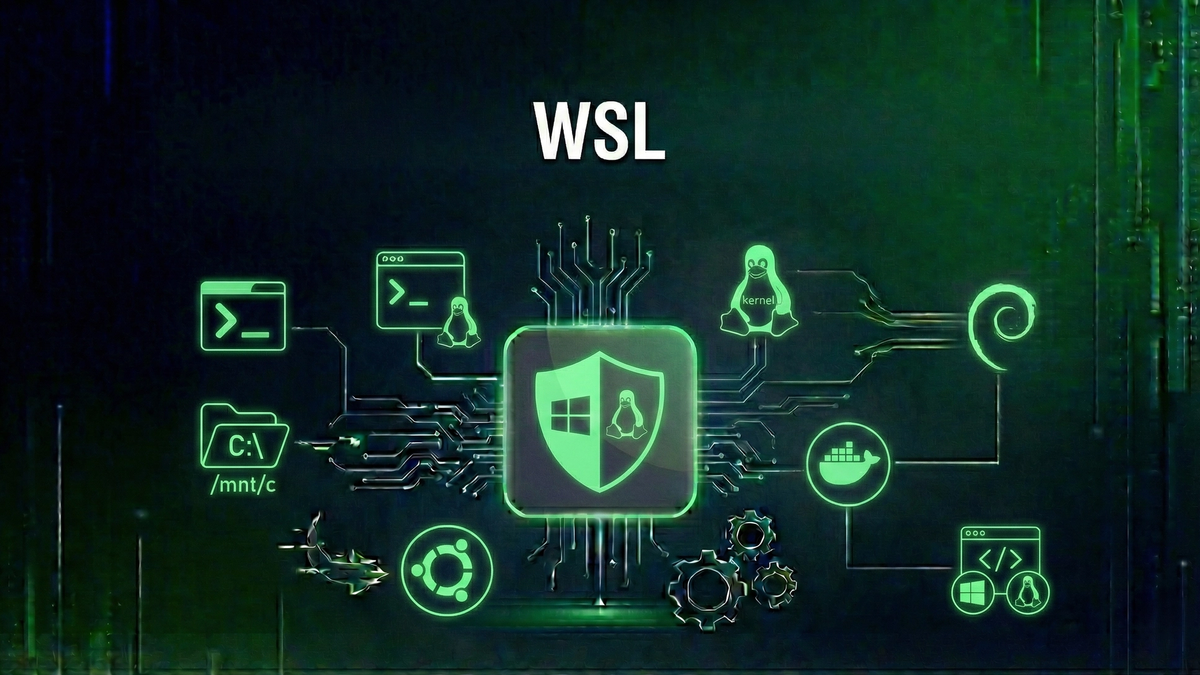
What is Windows Subsystem for Linux (WSL)?
A complete guide to Windows Subsystem for Linux. Learn how WSL enables running Linux on Windows, the differences between WSL 1 and WSL 2, and how to set it up for development.
Windows Subsystem for Linux (WSL) is one of the most significant additions to Windows for developers in recent years. It allows you to run a full Linux environment directly on Windows without the overhead of traditional virtual machines or the complexity of dual-boot setups. Whether you're a developer working with Linux-based tools, a system administrator managing mixed environments, or simply curious about Linux, WSL provides a seamless way to bridge the Windows and Linux worlds.
In this guide, we'll explore what WSL is, how it works under the hood, the key differences between WSL 1 and WSL 2, and how to get started. We'll also cover common use cases, networking configurations, and important security considerations for enterprise environments.
What is Windows Subsystem for Linux?
Windows Subsystem for Linux is a compatibility layer that enables Windows users to run Linux binary executables natively on Windows 10 and Windows 11. Rather than emulating Linux or running it in a traditional virtual machine, WSL integrates Linux deeply into the Windows operating system, providing near-native performance for most workloads.
With WSL, you can install popular Linux distributions like Ubuntu, Debian, Fedora, or openSUSE directly from the Microsoft Store. Once installed, you have access to a complete Linux command-line environment, including package managers (apt, dnf), shell utilities (bash, zsh), development tools (gcc, python, node), and much more.
The beauty of WSL lies in its integration with Windows. You can access your Windows files from Linux (they appear under /mnt/c/, /mnt/d/, etc.), run Linux commands from PowerShell or Command Prompt, and even launch Windows applications from within Linux. This bidirectional interoperability makes WSL incredibly powerful for developers who need both ecosystems.
A Brief History of WSL
Microsoft first announced WSL in March 2016, marking a dramatic shift in the company's relationship with open sourceOpen Source📖Software with publicly available source code that anyone can inspect, modify, and distribute. and Linux. The initial version, now known as WSL 1, was released with Windows 10 Anniversary Update in August 2016. It worked by translating Linux system calls into Windows system calls in real-time—an impressive technical achievement, but one with inherent limitations.
In May 2019, Microsoft unveiled WSL 2, a completely redesigned architecture that addressed many of WSL 1's limitations. Rather than translation, WSL 2 runs a real Linux kernel in a lightweight virtual machine, delivering dramatic performance improvements and full system call compatibility.
At Microsoft Build 2025, the company took another major step by open-sourcing the WSL codebase on GitHub. This move allows the community to contribute improvements and provides greater transparency into how WSL works. The only components not open-sourced are those that are integral parts of Windows itself.
WSL 1 vs WSL 2: Understanding the Differences
While both versions let you run Linux on Windows, they work very differently under the hood. Understanding these differences helps you choose the right version for your use case.
WSL 1: Translation Layer Architecture
WSL 1 uses a translation layer approach. When a Linux application makes a system call (a request to the operating system kernel), WSL 1 intercepts it and translates it into an equivalent Windows system call. This happens in real-time, allowing Linux binaries to run without modification.
Advantages of WSL 1:
Limitations of WSL 1:
WSL 2: Real Linux Kernel in a VM
WSL 2 takes a fundamentally different approach. It runs a genuine Linux kernel inside a lightweight, highly optimized virtual machine managed by Hyper-V. This isn't a traditional VM—it's designed specifically for WSL, with fast boot times (typically under 2 seconds) and efficient memory management.
Advantages of WSL 2:
Trade-offs with WSL 2:
For most users, WSL 2 is the recommended choice. Its full kernel compatibility means fewer surprises when running Linux software, and Docker support is essential for modern development workflows. Only choose WSL 1 if you frequently work with files on Windows drives or have specific hardware constraints.
Getting Started with WSL
Setting up WSL is straightforward on modern Windows 10 and Windows 11 systems. Microsoft has simplified the installation process significantly over the years.
Installing WSL
The easiest way to install WSL is through PowerShell. Open PowerShell as Administrator and run:
wsl --install
This command installs WSL 2 (the default) along with Ubuntu as your Linux distribution. After installation, restart your computer when prompted. On first launch, Ubuntu will ask you to create a username and password—these are your Linux credentials, separate from your Windows account.
If you prefer a different Linux distribution, you can see available options with:
wsl --list --online
Then install your preferred distribution:
wsl --install -d Debian
Basic WSL Commands
Here are essential commands for managing WSL:
Common Use Cases for WSL
Docker and Container Development
Docker Desktop for Windows integrates tightly with WSL 2, providing the best container development experience on Windows. When you enable WSL 2 backend in Docker Desktop, containers run inside WSL 2's Linux kernel, offering near-native Linux performance. This is significantly faster than the older Hyper-V backend and allows seamless file sharing between Windows and containers.
For developers working with Kubernetes, tools like minikube and kind also work excellently within WSL 2, making it a complete platform for cloud-native development.
Development Tools and Languages
Many development tools are designed primarily for Linux or work better in Linux environments. WSL gives you native access to:
System Administration and DevOps
System administrators managing Linux servers benefit enormously from WSL. You can use native Linux tools like ssh, rsync, and ansible directly, write and test shell scripts in a real Linux environment, and work with configuration files that will behave identically on production servers.
WSL Networking Modes
Understanding WSL networking is crucial, especially in enterprise environments where VPNs and firewalls add complexity. WSL 2 supports two primary networking modes.
NAT Mode (Default)
By default, WSL 2 uses NAT (Network Address Translation) networking. The Linux environment gets its own virtual network adapter with a private IP addressIP Address🔐A unique numerical identifier assigned to every device connected to the internet.. Traffic is translated through the Windows host to reach external networks. This mode works well for most scenarios but can cause issues with some VPN configurations and makes it harder to access WSL services from other devices on your network.
Mirrored Mode
Mirrored mode networkingMirrored Mode Networking🌐A WSL networking mode that mirrors the Windows host network configuration into the Linux environment, improving VPN compatibility and enabling IPv6 support., introduced in September 2023, mirrors the Windows host's network configuration directly into WSL. This provides several benefits:
To enable mirrored mode, add the following to your .wslconfig file in your Windows user profile folder:
[wsl2] networkingMode=mirrored
Note: A recent Windows 11 bug (KB5067036/KB5072033) is causing VPN connectivity issues specifically with mirrored mode networking. Check Microsoft's release health dashboard for the latest status on this issue.
Security Considerations for Enterprise
While WSL is a powerful tool, enterprises need to consider its security implications carefully.
File System Access
WSL has full access to your Windows file system through the /mnt/ directory. This means any malware running in WSL could potentially access, modify, or encrypt your Windows files. Ensure your Linux environment is kept updated and follow the same security practices you would on any Linux system.
Antivirus and EDR
Traditional Windows antivirus solutions may not scan files within the WSL filesystem effectively. Some enterprise EDR (Endpoint Detection and Response) solutions now include WSL-aware scanning, but verify your security tools' capabilities. Microsoft Defender has added WSL plugin support for better coverage.
Enterprise Policy Considerations
Organizations should consider:
Common Issues and Troubleshooting
Virtualization Not Enabled
If WSL 2 installation fails, ensure virtualization is enabled in your BIOS/UEFI settings (look for Intel VT-x or AMD-V). You may also need to enable the "Virtual Machine Platform" Windows feature.
Slow File Performance
If file operations feel slow, check where your files are located. For best performance in WSL 2, keep project files within the Linux filesystem (e.g., ~/projects) rather than on Windows drives (/mnt/c/). Cross-filesystem operations in WSL 2 involve overhead that can significantly impact build times.
Network Connectivity Issues
VPN-related network problems are common with WSL 2. If you experience connectivity issues while connected to a VPN, try switching networking modes, temporarily disconnecting from VPN to test, or consulting your IT department about VPN compatibility with WSL.
Summary
Windows Subsystem for Linux has transformed how developers work on Windows. By providing a native Linux environment integrated seamlessly with Windows, WSL eliminates the need for dual-booting, reduces virtual machine overhead, and enables true cross-platform development workflows.
Key takeaways:
Whether you're building containers, developing web applications, or learning Linux, WSL provides an excellent platform that continues to improve with each Windows update.
Keep Learning
Continue exploring related topics:
Related Reviews

Best VPNs for 2025: Top Pick for Privacy, Streaming, and Security
Our top VPN recommendation for 2025 delivers fast speeds, servers in 90+ countries, military-grade encryption, and reliable streaming access—everything you need for online privacy.
REOLINK 4K Security Camera System Review: Professional PoE Surveillance at DIY Prices
The REOLINK 4K PoE security system delivers 8MP clarity, smart person/vehicle detection, 24/7 recording with 4TB storage, and plug-and-play installation for comprehensive home surveillance.
Ring Outdoor Cam Pro Review: 4K Security Camera with Radar-Powered Motion Detection
The Ring Outdoor Cam Pro delivers Retinal 4K video, 10x enhanced zoom, Low-Light Sight for true color night vision, and radar-powered 3D motion detection for precise security alerts.