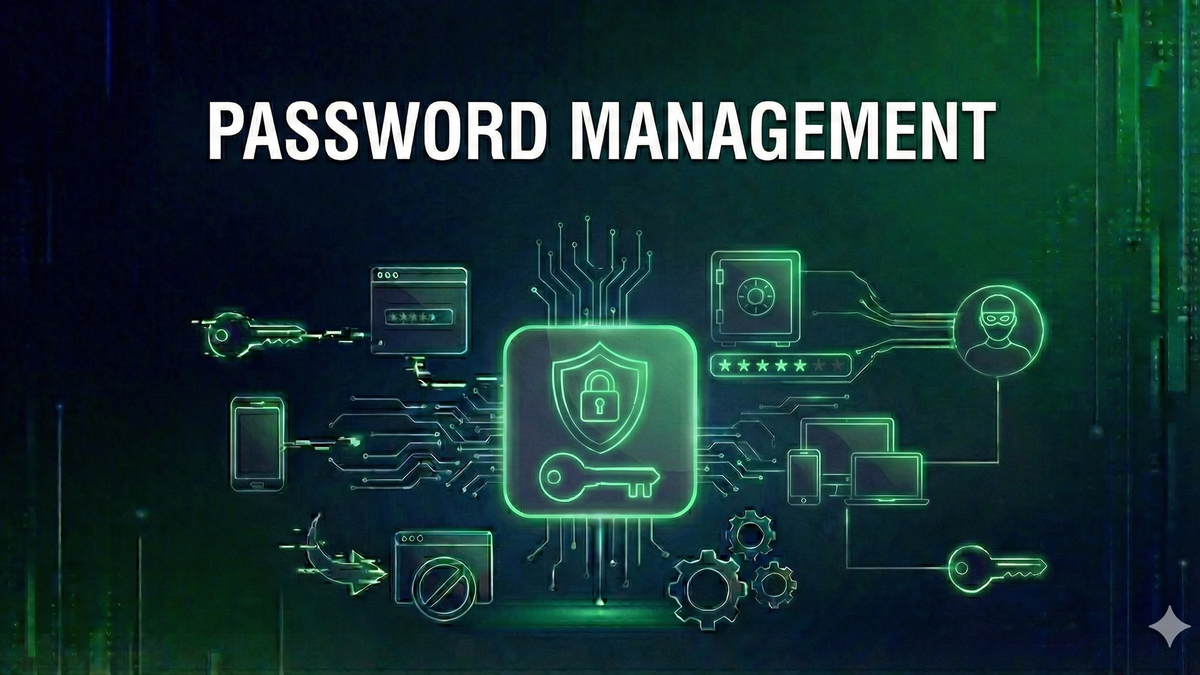
Password Manager Basics: Why You Need One and How to Get Started
Learn why password managers are essential for online security, how they work, what features to look for, and how to get started with step-by-step guidance.
If you're still using the same password across multiple accounts, writing passwords on sticky notes, or relying on simple patterns like 'password123,' you're not alone—but you are at significant risk. In an era where data breaches expose millions of credentials weekly, a password managerPassword Manager🛡️Software that securely stores and auto-fills passwords, generating strong unique passwords for each account. isn't just convenient; it's essential for protecting your digital life.
This guide explains what password managers are, why they've become a security necessity, how to choose the right one, and how to get started. Whether you're a complete beginner or looking to upgrade your security practices, you'll learn everything you need to know about this fundamental security tool.
What is a Password Manager?
A password manager is a secure application that stores, generates, and auto-fills your passwords. Think of it as a digital vault protected by one master password—the only password you need to remember. Inside this vault, the password manager stores unique, complex passwords for every account you own.
Modern password managers do much more than store passwords. They can generate random, unguessable passwords on demand, auto-fill login forms so you never type passwords manually, sync across all your devices (phone, tablet, computer), alert you if your passwords appear in data breaches, store secure notes, credit cards, and other sensitive information, and share passwords securely with family members or team members.
How Password Managers Work
When you create an account with a password manager, you set a master password. This master password encrypts your entire password vault using strong encryptionEncryption🛡️The process of converting data into a coded format that can only be read with the correct decryption key. algorithms like AES-256—the same encryption used by governments and military organizations.
Your encrypted vault syncs to the cloud (for most services), but even the password manager company cannot read your passwords. This is called 'zero-knowledgeZero-Knowledge🛡️A security model where the service provider has no ability to access your decrypted data.' architecture—only you hold the key to decrypt your data. If the company gets hacked, attackers get only encrypted gibberish without your master password.
Why You Need a Password Manager
Data Breaches Are Constant
Major data breaches happen almost daily. When a company gets breached, attackers often obtain usernames and passwords. If you reuse passwords, a breach at one site compromises all your accounts using that password.
Consider recent breaches: LinkedIn (700 million records), Facebook (533 million records), Yahoo (3 billion accounts). If your password was exposed in any of these breaches and you've reused it elsewhere, attackers can access those accounts through 'credential stuffing'—automated attacks that try leaked passwords across thousands of sites.
Human Memory Has Limits
The average person has over 100 online accounts. Creating and remembering unique, complex passwords for each is humanly impossible. Without a password manager, people inevitably take shortcuts: reusing passwords, using simple patterns, or writing passwords down.
Password managers eliminate this problem entirely. You remember one strong master password; the manager remembers everything else. The passwords it generates are truly random—30+ characters of letters, numbers, and symbols that no human could memorize or guess.
Protection Against PhishingPhishing🛡️A social engineering attack using fake emails or websites to steal login credentials or personal info.
Password managers provide an often-overlooked security benefit: phishing protection. When you visit a fake website designed to steal your credentials, your password manager won't auto-fill because the URL doesn't match. This simple feature has saved countless users from sophisticated phishing attacks.
If you manually type passwords, you might not notice that 'arnazon.com' isn't 'amazon.com.' Your password manager will notice—it simply won't offer to fill your Amazon password on the wrong site.
Security and Convenience Together
Counterintuitively, password managers make security easier, not harder. Logging into websites becomes a single click or tap. You never struggle to remember which password you used. Password resets become rare. Signing up for new services takes seconds—the manager generates and saves a secure password automatically.
What to Look for in a Password Manager
Security Features
Usability Features
Additional Considerations
Popular Password Manager Options
Bitwarden
Bitwarden is an open-source password manager with a generous free tier. The code is publicly auditable, meaning security researchers can verify its claims. Free users get unlimited passwords across unlimited devices. Premium features (about $10/year) include advanced 2FA options, encrypted file storage, and priority support. Bitwarden is ideal for users who value transparency and affordability.
1Password
1Password is known for its polished user experience and strong security. It pioneered the 'Secret Key' system—a second encryption key stored on your devices that hackers would need alongside your master password. 1Password excels in family and business environments with excellent sharing features. It costs about $3-5/month depending on the plan.
LastPass
LastPass was once the go-to recommendation but has experienced security incidents that damaged trust. Recent breaches exposed encrypted vault data, making some security experts hesitant to recommend it. If you currently use LastPass, consider migrating to another option.
Dashlane
Dashlane includes a built-in VPN and dark web monitoring in premium plans. Its interface is beginner-friendly, though it costs more than competitors. The automatic password changer can update passwords on supported sites without manual intervention—a unique feature.
Apple Keychain / Google Password Manager
Built-in browser and OS password managers have improved significantly. Apple's Keychain works seamlessly across Apple devices, and Google's Password Manager integrates with Chrome. These are better than nothing but lack advanced features, cross-platform support, and independent security audits. They're acceptable for casual users but not recommended for anyone serious about security.
Getting Started: Step-by-Step
Step 1: Choose Your Password Manager
Select a password manager based on your needs and budget. Bitwarden offers the best free option; 1Password provides the best overall experience for a reasonable price. Download the application for your computer and phone, plus browser extensions.
Step 2: Create a Strong Master Password
Your master password is the most important password you'll ever create. It must be strong enough to resist cracking attempts yet memorable enough that you never forget it.
Use a passphrase: a sequence of random words. Something like 'correct-horse-battery-staple' is both strong and memorable. Aim for 4-6 random words, totaling at least 16 characters. Never reuse a password as your master password, and never share it with anyone.
Step 3: Enable Two-Factor Authentication
Immediately enable two-factor authentication (2FA) on your password manager account. This means even if someone learns your master password, they cannot access your vault without your second factor—typically a code from an authenticator app or a hardware security keySecurity Key🛡️A physical hardware device used for authentication, providing stronger protection than SMS or app-based 2FA.. This single step dramatically increases your security.
Step 4: Import Existing Passwords
Most password managers can import passwords saved in your browser. This gives you a starting point. Export from Chrome, Firefox, or Safari, then import into your new password manager. After importing, delete the passwords from your browser—you don't want them stored in two places.
Step 5: Start Replacing Weak Passwords
Your password manager will likely flag weak and reused passwords. Start with your most critical accounts: email (the master key to all other accounts), banking, and social media. For each, use the password generator to create a new, unique password. This process takes time—don't try to change everything at once.
Password Manager Best Practices
Protect Your Master Password
Maintain Access
Ongoing Password Hygiene
Common Concerns Addressed
"Isn't Putting All Eggs in One Basket Risky?"
This concern is valid but misunderstands the alternative. Without a password manager, you're either reusing passwords (extremely risky) or using weak passwords (also risky). A well-secured password manager with 2FA is far safer than any alternative. The 'basket' is encrypted, backed up, and protected by multiple security layers.
"What if the Password Manager Gets Hacked?"
Reputable password managers use zero-knowledge encryption. Even if their servers are breached, attackers only get encrypted data that's useless without your master password. This is fundamentally different from a website breach where passwords might be poorly protected. Choose a manager with a strong security track record and independent audits.
"What if I Forget My Master Password?"
This is a real risk with zero-knowledge encryption—the company cannot reset your password. Mitigate this by choosing a memorable passphrase, practicing regularly, storing a physical backup securely, and setting up emergency access with a trusted person.
Conclusion
A password manager is no longer optional for anyone who uses the internet seriously. The combination of constant data breaches, sophisticated phishing attacks, and the sheer number of accounts we maintain makes manual password management impossible to do securely.
Getting started takes less than an hour. Choose a reputable manager (Bitwarden for free, 1Password for premium), create a strong master passphrase, enable two-factor authentication, and begin migrating your passwords. Your future self will thank you the first time you hear about a breach at a service you use and know your unique password there can't affect your other accounts.
Strong, unique passwords managed by a dedicated tool represent a fundamental security practice. Combined with two-factor authentication, you'll have protection that puts you ahead of the vast majority of internet users—and makes you a much harder target for attackers.
Keep Learning
Related Reviews
REOLINK 4K Security Camera System Review: Professional PoE Surveillance at DIY Prices
The REOLINK 4K PoE security system delivers 8MP clarity, smart person/vehicle detection, 24/7 recording with 4TB storage, and plug-and-play installation for comprehensive home surveillance.
Ring Outdoor Cam Pro Review: 4K Security Camera with Radar-Powered Motion Detection
The Ring Outdoor Cam Pro delivers Retinal 4K video, 10x enhanced zoom, Low-Light Sight for true color night vision, and radar-powered 3D motion detection for precise security alerts.
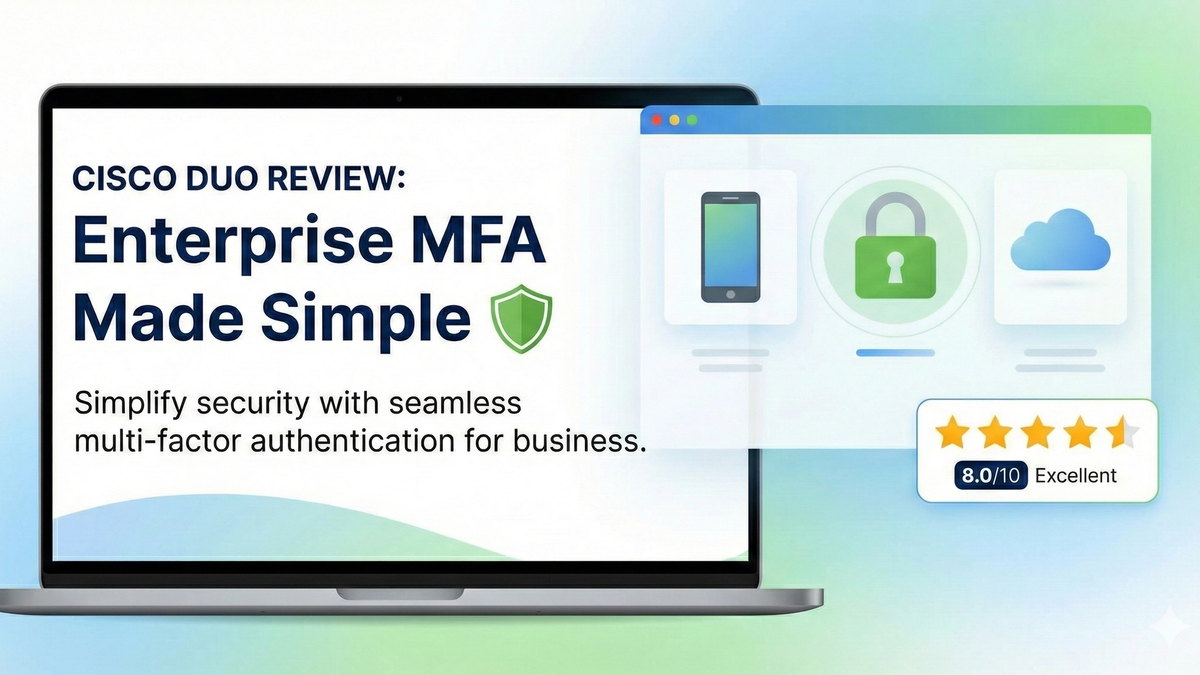
Cisco Duo Review: Enterprise MFA Made Simple
Cisco Duo delivers robust multi-factor authentication with one of the smoothest user experiences in the enterprise MFA space. While pricing can escalate quickly for larger teams, its device trust and adaptive policies make it a solid choice for security-conscious organizations.